


There are several ways to manage the files of your website. Through the control panel, you can easily store, edit, or upload individual files or folders quickly. Use SFTP if you want to securely and easily transfer multiple files and folders at the same time.
In this article, we explain how you can upload or download your website files via your control panel or via SFTP when you are using a web hosting package.
I want to upload files and folders via my control panel
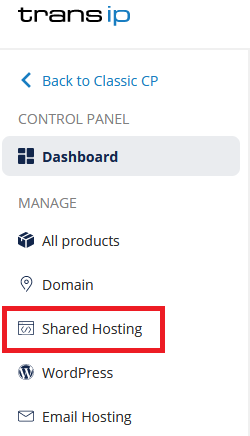
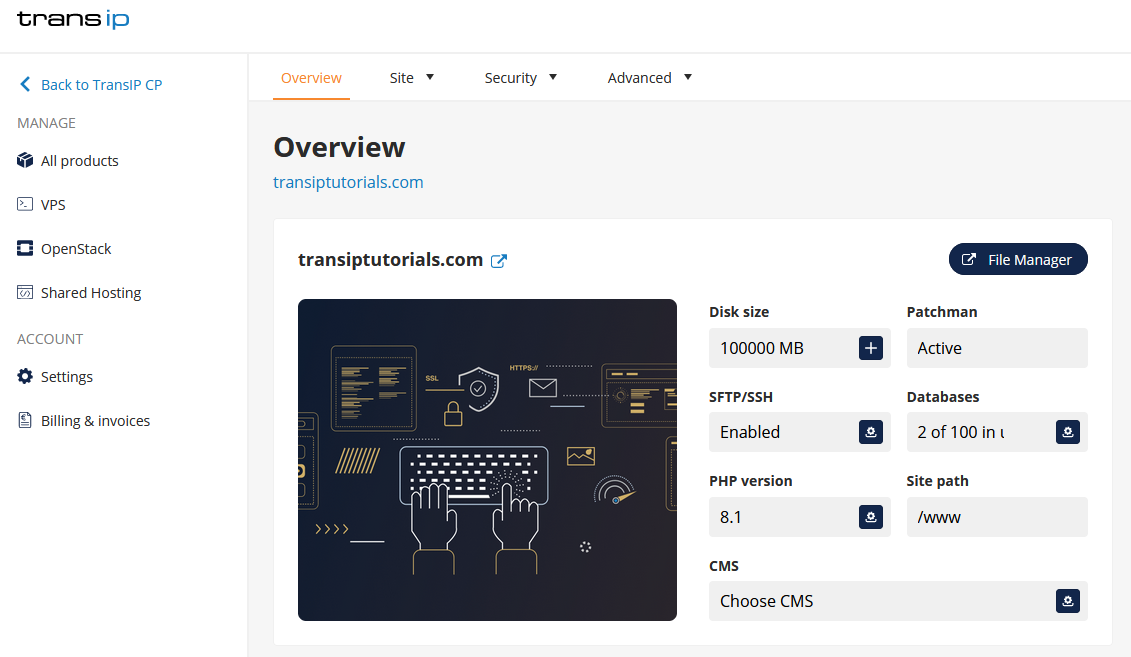
The File Manager is a nice and easy way to upload your files and folders via the control panel. You can reach the File Manager by logging in to the control panel and clicking 'Shared Hosting' in the menu. Next, select your domain below 'Products'.
On the overview page of your webhosting package, click the 'File Manager' button on the right side of the screen. The article 'Using SFTP filemanagement in your control panel' tells you more about the File Manager and how to use it.
Do note that the 'File Manager' is best used to upload or download individual files and folders to your website. If you want to move many files at once it is reccommended to use an SFTP client such as Filezilla or Cyberduck.
Using an an SFTP client to upload or download files and folders
If you want to upload or download your files using an SFTP client, we reccommend to use the following:
Both Filezilla and Cyberduck are free software and are pleasant to work with.
If you would like a more in depth explanation on how to download or upload a full back-up of your website, read the following two articles:
Your SFTP data
The information you need to connect to SFTP is listed in the e-mail you've received after you ordered the webhosting package. If you don't have it anymore, you can find everything you need in the control panel.
Step 1
Log in to the control panel and click 'Shared Hosting' in the menu. Next, select your domain below 'Products'.
Click on the 'Site' tab and then 'SFTP/SSH' as shown in the image below.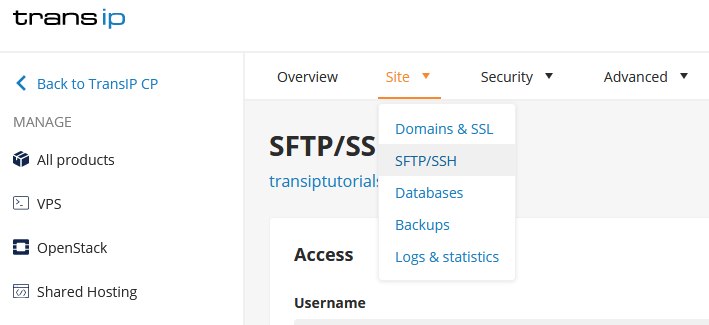
Step 2
On the following page you will find the details needed to connect to an SFTP client.
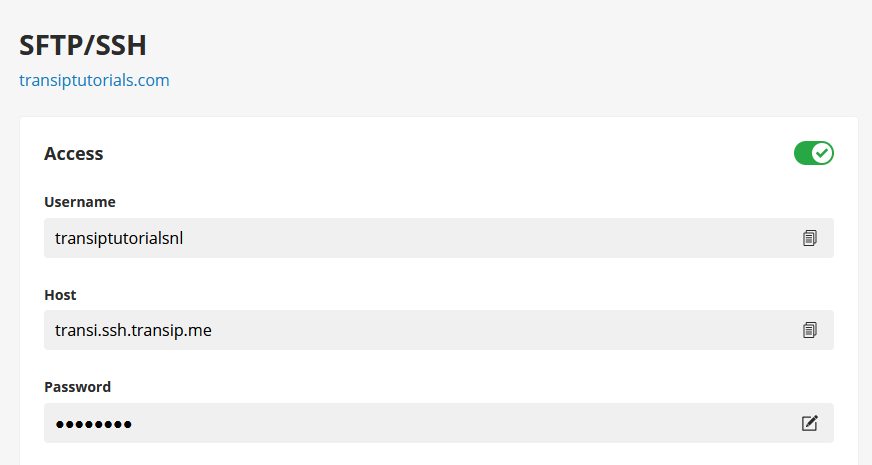
You need the following information to log in to an SFTP program:
- Username
- Host
- Password
- SFTP port: 22 or 2222
If the SFTP client doesn't connect straight away using this information, try manually entering port 22 or 2222.
After you've logged in to SFTP, you can move files to or from the webhostingpackage. Use the www folder of the webhostingpackage to upload files to your website, this is your website's "root" folder.
Your SFTP password
The SFTP password was sent to you by email shortly after your web hosting package was delivered. However, we recommend setting your own password.
You can change the SFTP password by clicking on the pencil icon under 'Password' on the right side of the SFTP data page.
Enter a secure password and click 'Update' to save the changes. If you ever lose your password, you can always enter a new one on this page.