If you wish to prepare your website before transferring your domain name, you will need to enter an incorrect authorization code during the domain transfer. This way you will still be able to order a Web Hosting package for the domain name, while the transfer itself won't succeed just yet.
This allows you to place your website on your Web Hosting package, resulting in as little downtime as possible.
-
Step 1Visit our homepage and enter your domain name in our domain checker.
Click 'Check'.

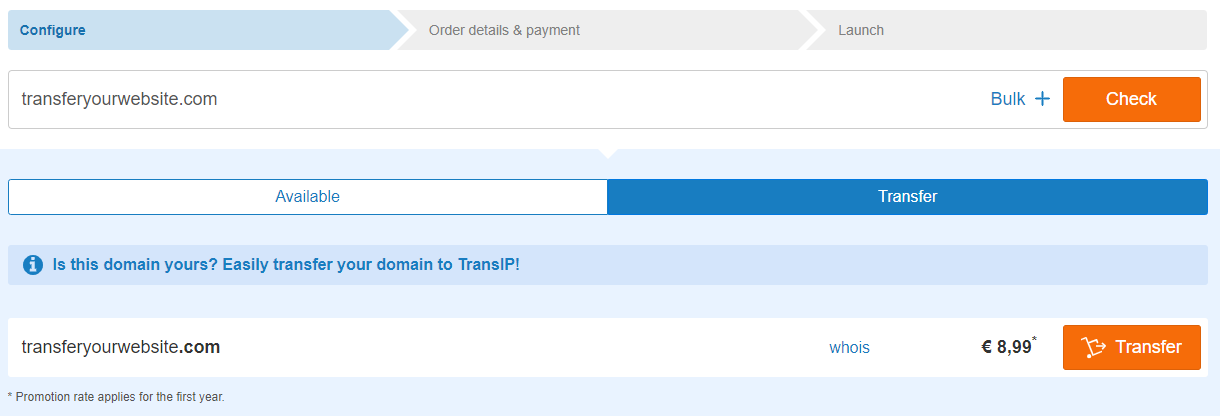
Step 2In the next window you will see the price of your domain transfer and the option to request a transfer for the domain name.
Click 'Transfer'.
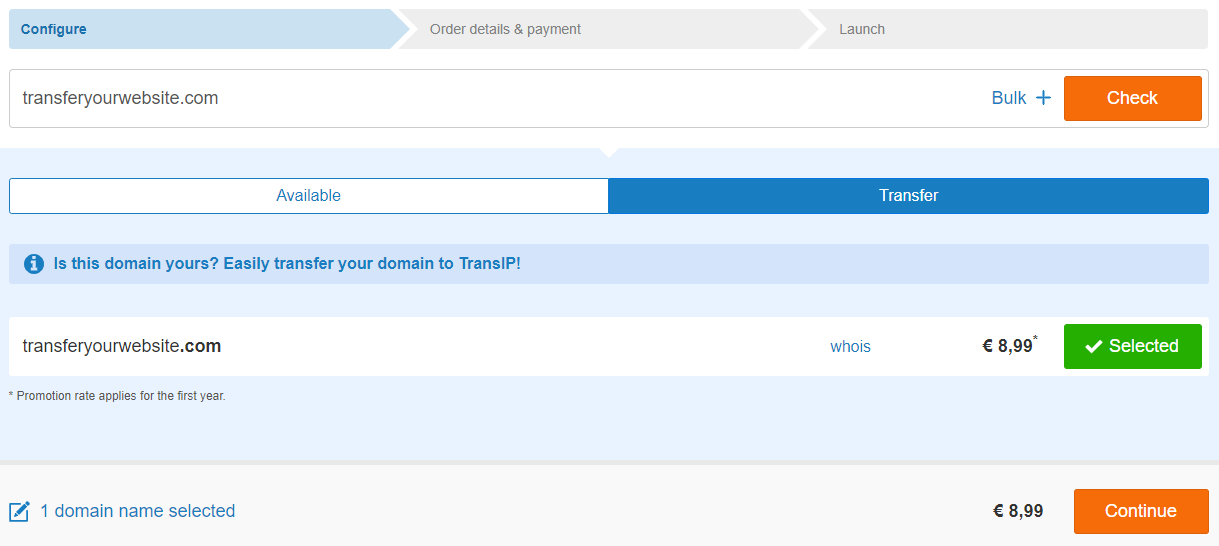
Step 3Click 'Continue'.
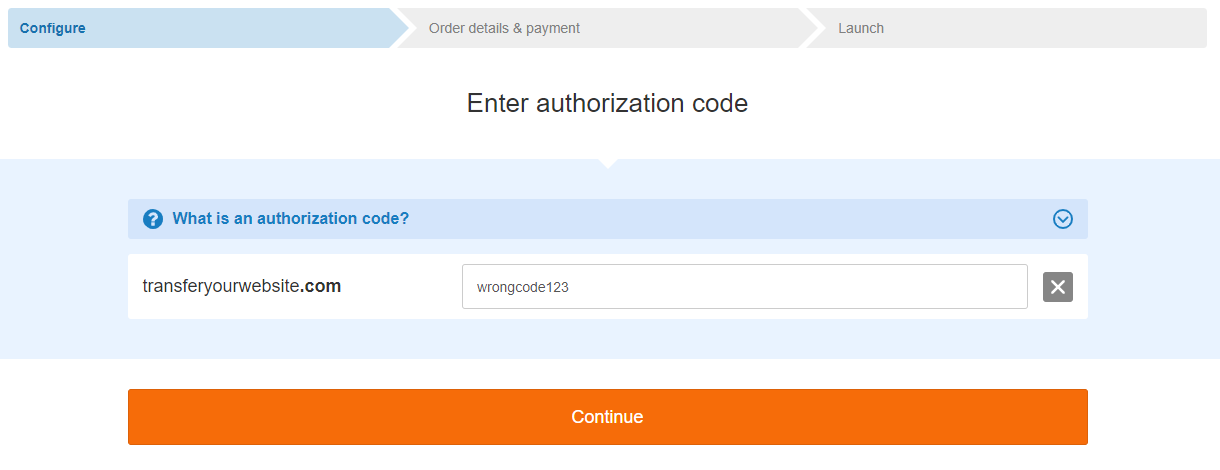
Step 4You will now be asked to enter the authorization code. In order to prepare your website on your Web Hosting package first, you will nee to enter an incorrect authorization code.
You can choose whichever authorization code you like, as long it's not the correct code. Make sure the code is at least 8 characters long, with at least 1 letter and 1 number.
If for some reason your incorrect authorization code isn't accepted during this step, please contact our support team and tell them which code you're entering. They will help you with entering a proper incorrect authorization code.
Take note: The transfer procedure may require additional or different steps, depending on the domain extension. Read the article 'Transferring your domain name to TransIP' for more information on the transfer procedure of your domain name.
After entering your incorrect code, click 'Continue'.
Step 5Once your incorrect authorization code is accepted, you will be able to choose a Web Hosting package for your domain name. You need Web Hosting to host your website at TransIP.
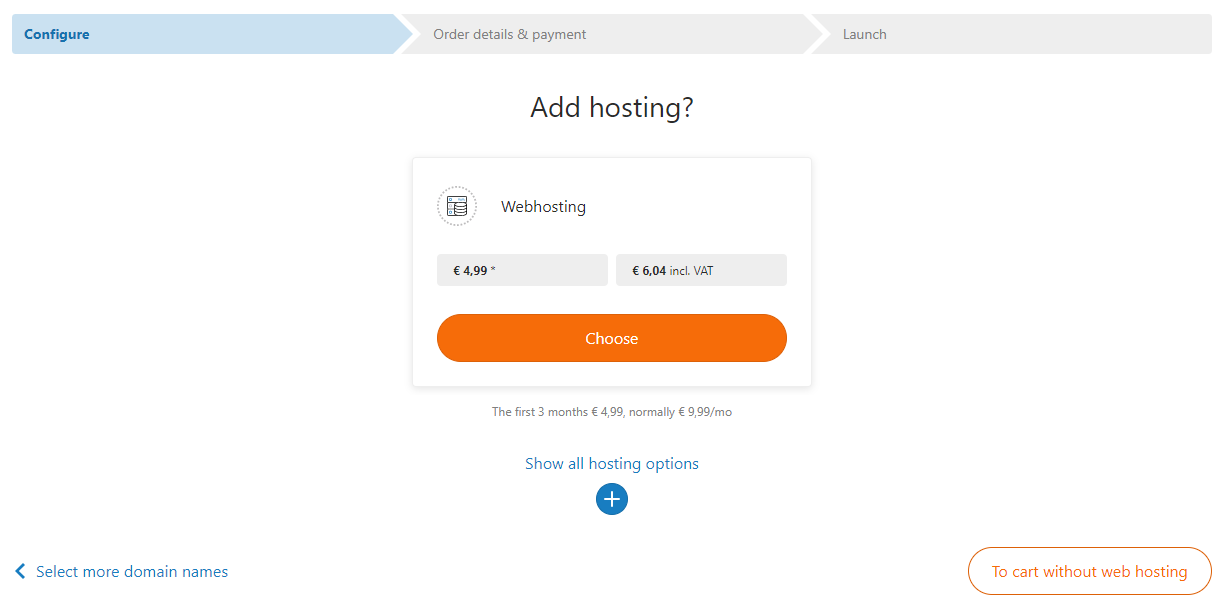
If you click 'Choose', you will add the Pro package to your domain name.
If you want add a different size of Web Hosting, click 'Show all hosting options' and select a different Web Hosting package.
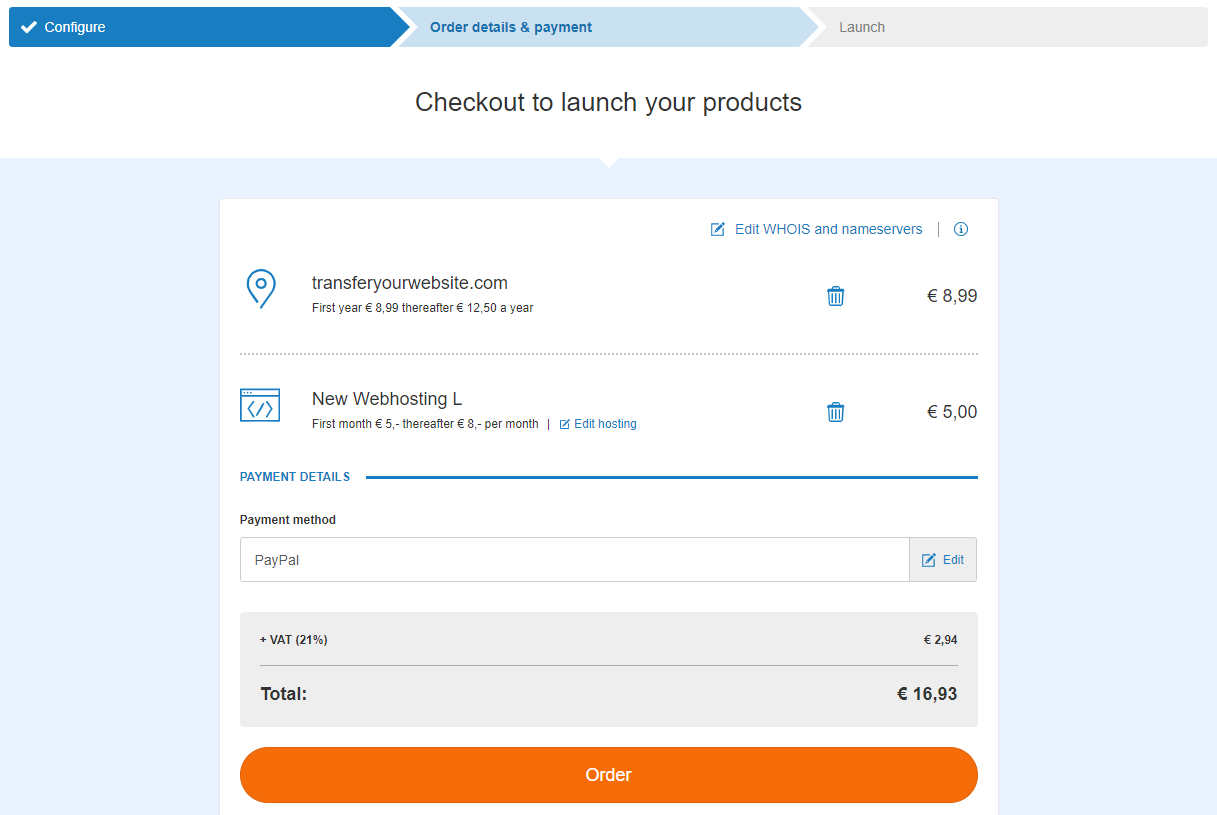
Step 6You will now see an overview of your selected products and payment method. Click the 'Edit' button next to the payment method to choose a different method.
Once you're ready, click 'Order'.
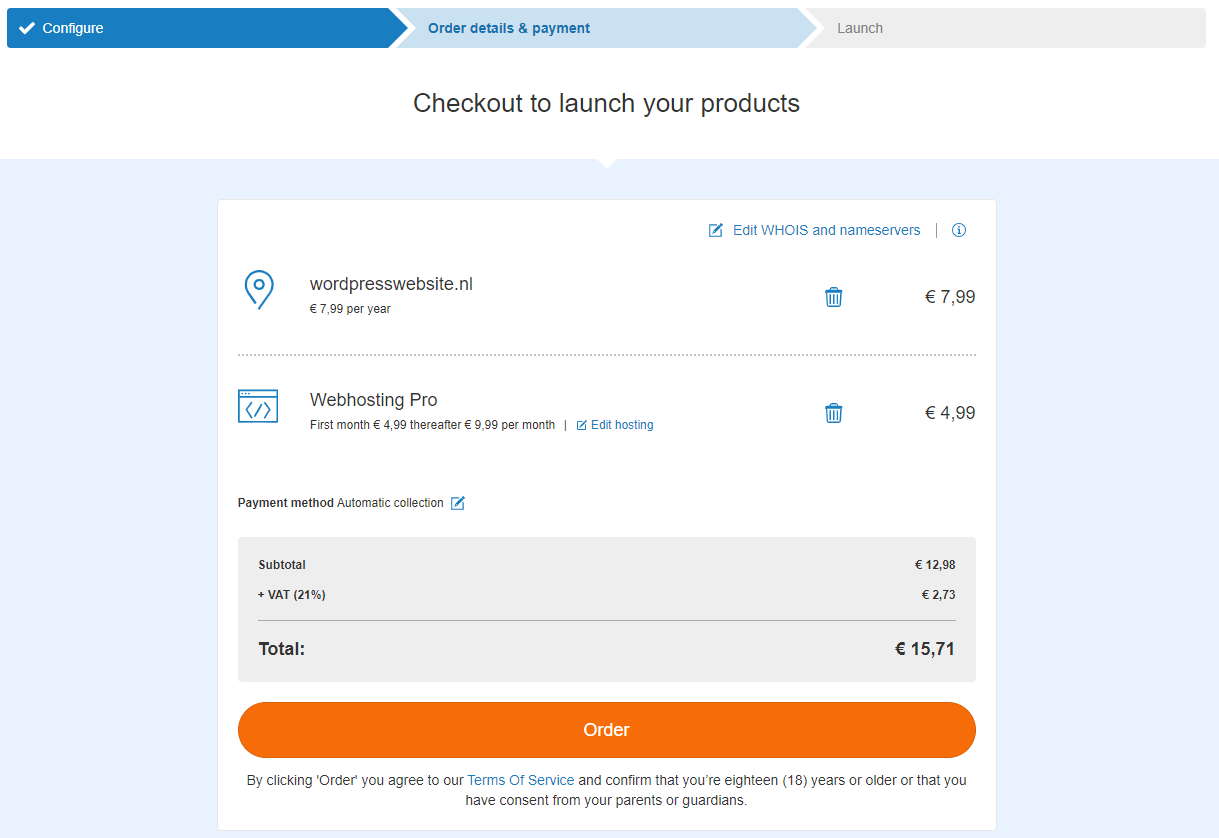
Your order will now be processed. Click on 'To control panel' to return to, you guessed it, your control panel.
Step 7Inside your control panel, head over to the tab 'Domains & Hosting' and select your domain name on the left hand side (don't check the box).
Next to your domain name you will find a Web Hosting icon. If the icon doesn't directly show up, wait a few minutes and refresh the page.
A notice should now also appear, telling you the transfer was requested. However, because you've entered an incorrect authorization code, the transfer could not be completed.
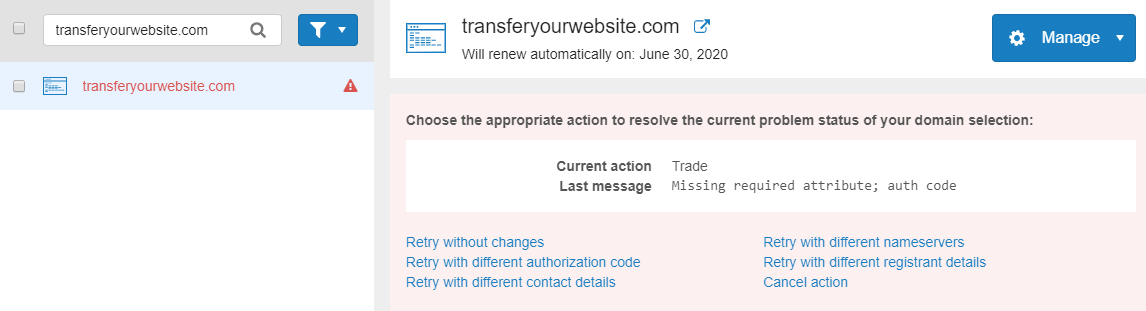
Proceed to 'Placing your website on your Web Hosting package'. At the end of that article we will show you how to complete the transfer. But first it's time to place your website on your Web Hosting at TransIP.