


On our web hosting packages, you can restore a backup from an earlier point in time with the click of a button. With a regular web hosting package, you can also download your database or website files so you can keep your own backups.
There are also ways to create and download backups of your website directly from within WordPress. In this article, we'll explain how to create a backup of your WordPress website using a backup plugin.
Create a backup using a plugin
Step 1
Log in to your WordPress dashboard. You can do this by navigating to your website in your browser and appending /wp-admin/ to the URL.
Step 2
Install the backup plugin of your choice.
Every plugin has its own advantages and disadvantages. Below are two examples of free backup plugins.
- UpdraftPlus offers many options and allows you to download your website files and database separately. This gives you a bit more control in exchange for some ease of use.
- All-in-One WP Migration is a bit easier to use because it creates a single file containing everything. The downside is that this file is not directly readable. To restore or migrate your website, you'll need to import the All-in-One file using the same plugin.
Besides these two examples, there are of course many other backup plugins that may better suit your needs.
To add plugins, go to Plugins in your WordPress Dashboard. Here you'll find an overview of your installed plugins and can choose new plugins by clicking Add Plugin at the top of the page or in the menu bar.
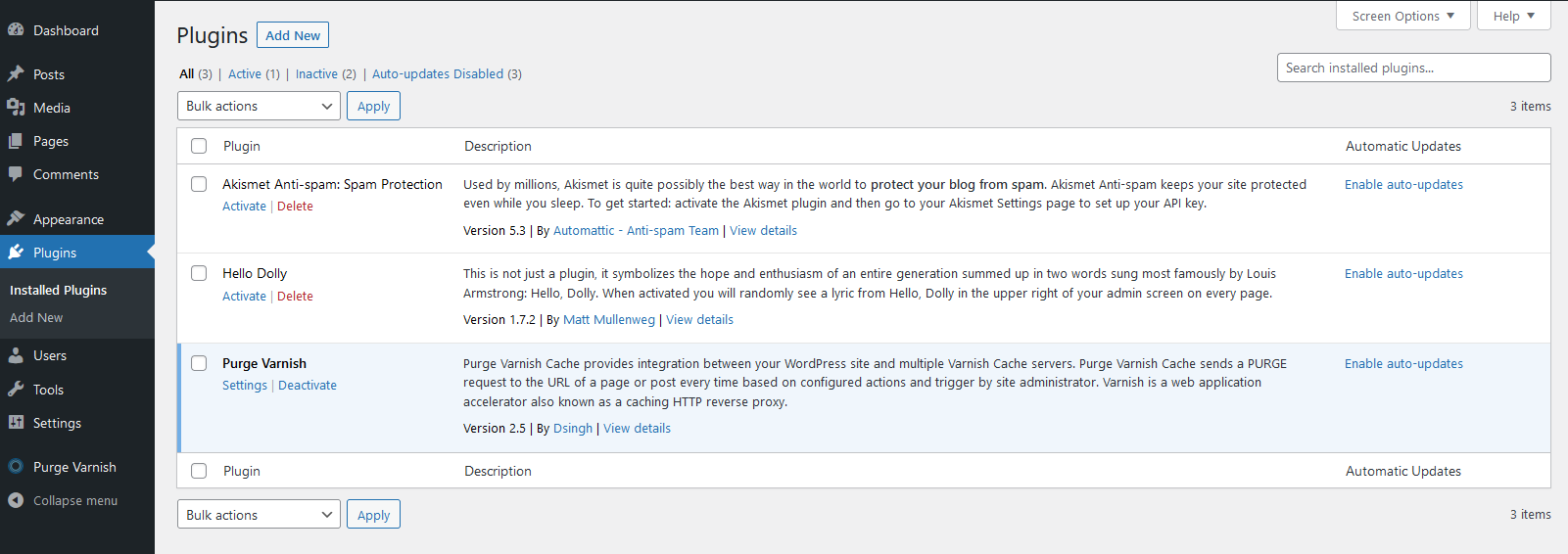
On the Add Plugin page, you can easily install plugins by clicking Install Now once you've found the plugin you want. Don't forget to activate the plugin after installation. You can do this either from the overview of installed plugins or from the Add Plugin page.
Click on one of the plugins below to view the instructions.
UpdraftPlus
Step 1
Open the plugin by clicking UpdraftPlus in the left-hand menu. Then click the Backup Now button.

Step 2
Click Backup Now once more.

Step 3
Under Backup data (click to download), click the components you want to download. If you want to download your entire website, click all six options.

Step 4
Click Download to your computer to save your files.

Note: An Updraft backup does not include the WordPress core files. Therefore, WordPress must already be installed before you can restore the backup.
All-in-One WP Migration
Step 1
Click All-in-One WP Migration in the menu on the left. Then click the Create Backup button.

Step 2
Once the download is ready, click Download <yourwebsite.com>.
